
How fixturemate 2.3 optimizes performance
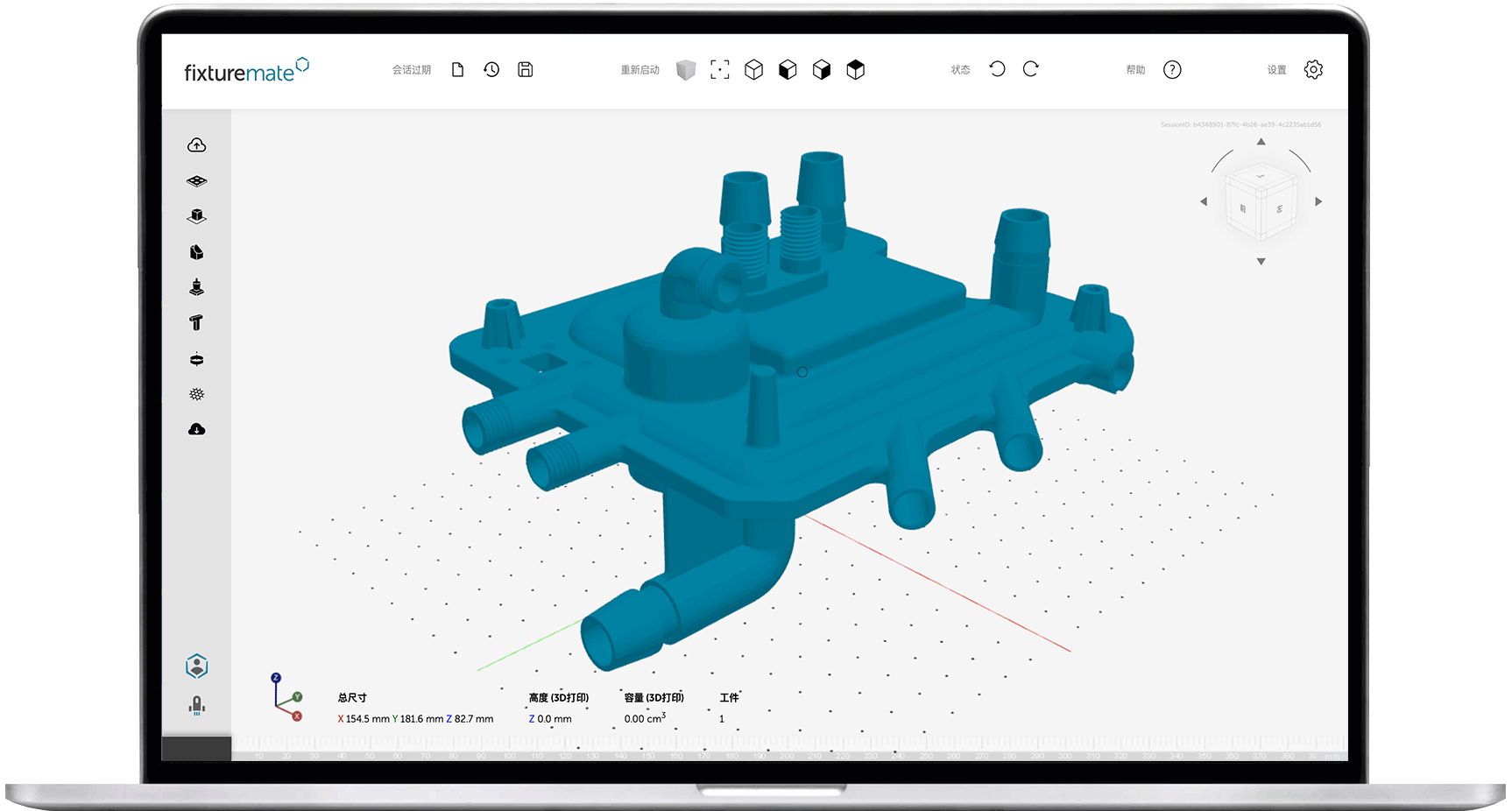
In the latest release of fixturemate, we've introduced automatic optimization steps when you import 3D models. This means less hassle and more efficiency, letting you focus on what really matters.
Plus, we’ve expanded accessibility by adding Simplified Chinese language support, making fixturemate easier to use globally.
Curious about how these optimizations can streamline your work? Keep reading to explore the details behind the new features and see how they can enhance your design process!
Why optimize imports?
Much like 3D printing, a typical fixturemate workflow starts with an STL file.
STL files come from various sources and export methods, which can affect their performance when imported into fixturemate. For instance, larger files may slow down processing and reduce efficiency.
For optimal performance, we recommend using STL files under 10MB. However, we understand not everyone wants to adjust files manually. That's why the latest release of fixturemate introduces automatic processing steps to optimize imports, reducing slow processing and frustration. Below is a quick explanation of how it works.
What makes a "good" STL file?
STL files consist of triangles that represent a 3D model.
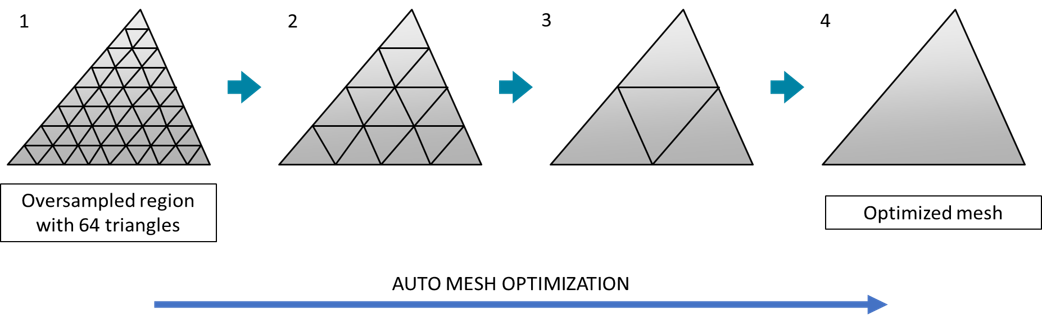
There's no limit to the number of triangles in an STL, so a model may use more triangles than necessary without adding any extra detail – they are oversampled.
For example, the image below shows several triangles. While they are all the same shape, some contain subdivided triangles that don’t add extra detail to the shape.
What about importing STEP files into fixturemate?
STP/STEP files are an open, standardized format for transferring 3D data between different design software. In fixturemate, any imported file of this type is automatically converted to STL before use.
STEP files save space by storing repeated elements once, along with their locations and orientations. The same applies to the 3MF format, which can lead to a smaller file size before conversion.
When converted to STL, these repeated elements are stored individually, which increases the file size.
As a result, converting a STEP file to STL can significantly increase the file size.
For best performance, we recommend importing STL files directly whenever possible.

Autosampling
Starting with fixturemate 2.3, any imported model larger than 5MB will be automatically downsampled to improve performance.
The model will be optimized to a maximum of 100,000 triangles by identifying and reconstructing oversampled areas without compromising quality.
This process may take a few minutes initially, but it will only occur once per session, helping to prevent frustrating delays while you work.
Streamline your workflow
No downloads are necessary to use fixturemate 2.3. Just log in as usual, and the updates will be waiting for you.
If you're a fixturemate user with a feature idea to make your tasks easier, get in touch with us and we can work together to make it happen.
We hope you like it!